Creating a server
One server = one game (or a bot, or an application) with its share of your resources. You can create as many as your plan allows.
Creating the server
- Open the administration (gear icon at the top right), then Servers → Create New.
- Core Details: give it a name (Server Name) and choose the owner (Server Owner, your account or a friend's).
- Allocation Management: the Nebus node is already selected. Choose the main port in Default Allocation (see Ports and connection).
- Resource Management: set the memory, disk and CPU (see below).
- Nest Configuration: choose the game (Nest) then the template (Egg), for example Minecraft → Paper, or Generic → Node.js generic for a bot (see Node.js and Python bots and apps).
- Check the Docker Image and the Service Variables (game version…), then click Create Server.
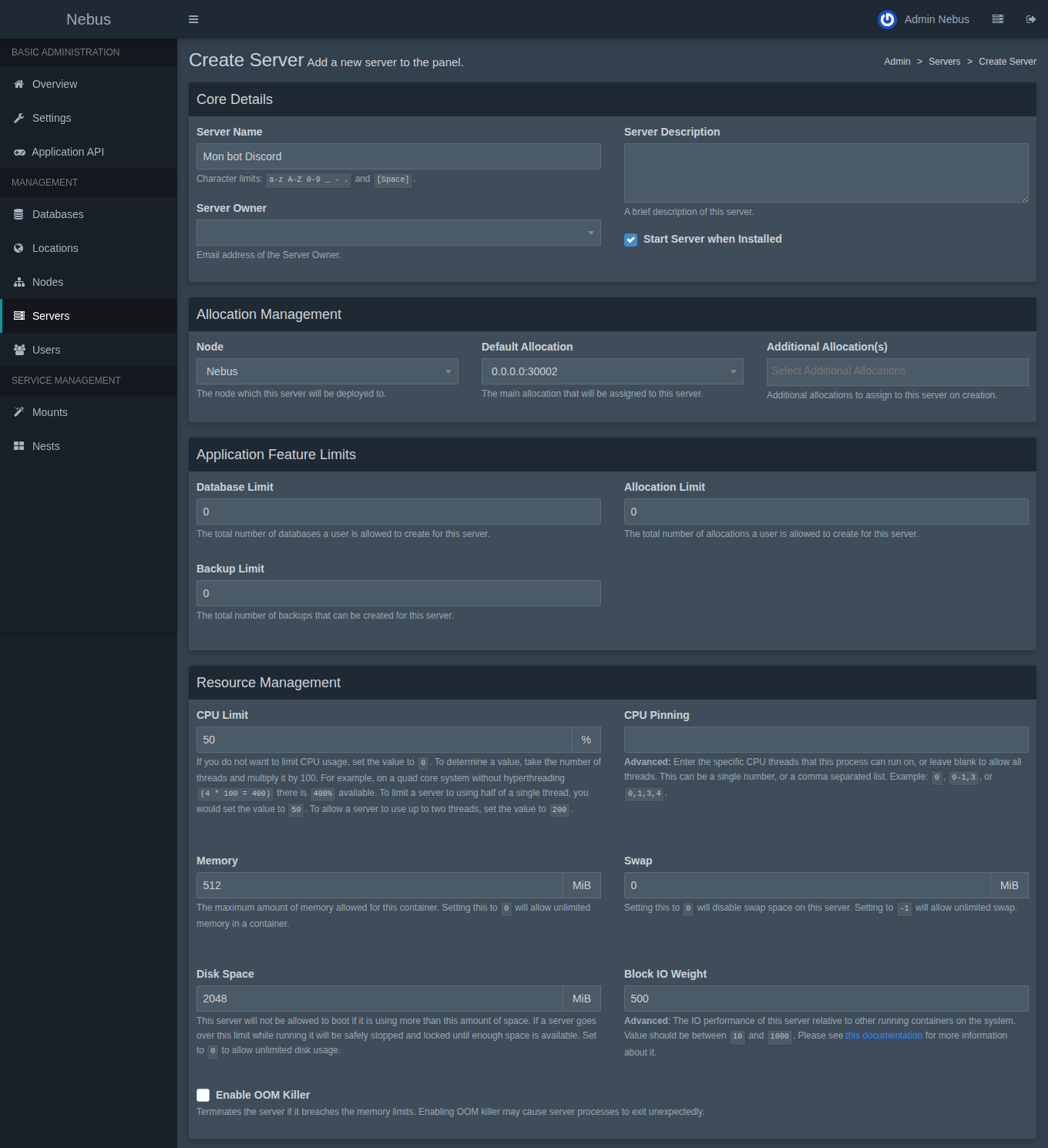
Installation starts straight away (the game is downloaded). Follow it in the server interface: the server goes from Installing to Offline when it is done. All that is left is to click Start.
Setting the resources
| Field | Unit | Advice |
|---|---|---|
| Memory | MiB (1024 = 1 GB) | The panel accepts any value, even if your servers' total exceeds your plan's RAM (over-allocation); their actual usage stays capped at the plan. Avoid 0 (unlimited): one server could then starve the others. |
| Swap | MiB | Leave it at 0: swap memory is not available. |
| Disk Space | MiB | Your plan's disk is shared by all servers, their backups and their images. As with memory, the total of the limits may exceed it: what counts is the space actually used. |
| CPU Limit | % of one core | 100 = 1 vCPU, 200 = 2 vCPU. 0 = no limit of its own (the server can then use all the vCPUs of your plan). |
Example with the Blaze plan (4 GB, 2 vCPU, 30 GB): a Paper server with 3072 MiB and 200% CPU, plus a Discord bot with 512 MiB and 50%. That leaves 512 MiB for a third small service.
Changing an existing server
In the administration, Servers → (your server):
- Build Configuration: resources, additional ports, number of backups and databases allowed.
- Startup: egg, Docker image, startup command and variables.
- Manage: reinstall or transfer the server. Delete: delete it along with its files.
The server owner can also change the Docker image and the variables from the Startup tab of the server interface.